

Organization
Manage your organization's teams, members, and settings. Access from the sidebar by clicking Organization.
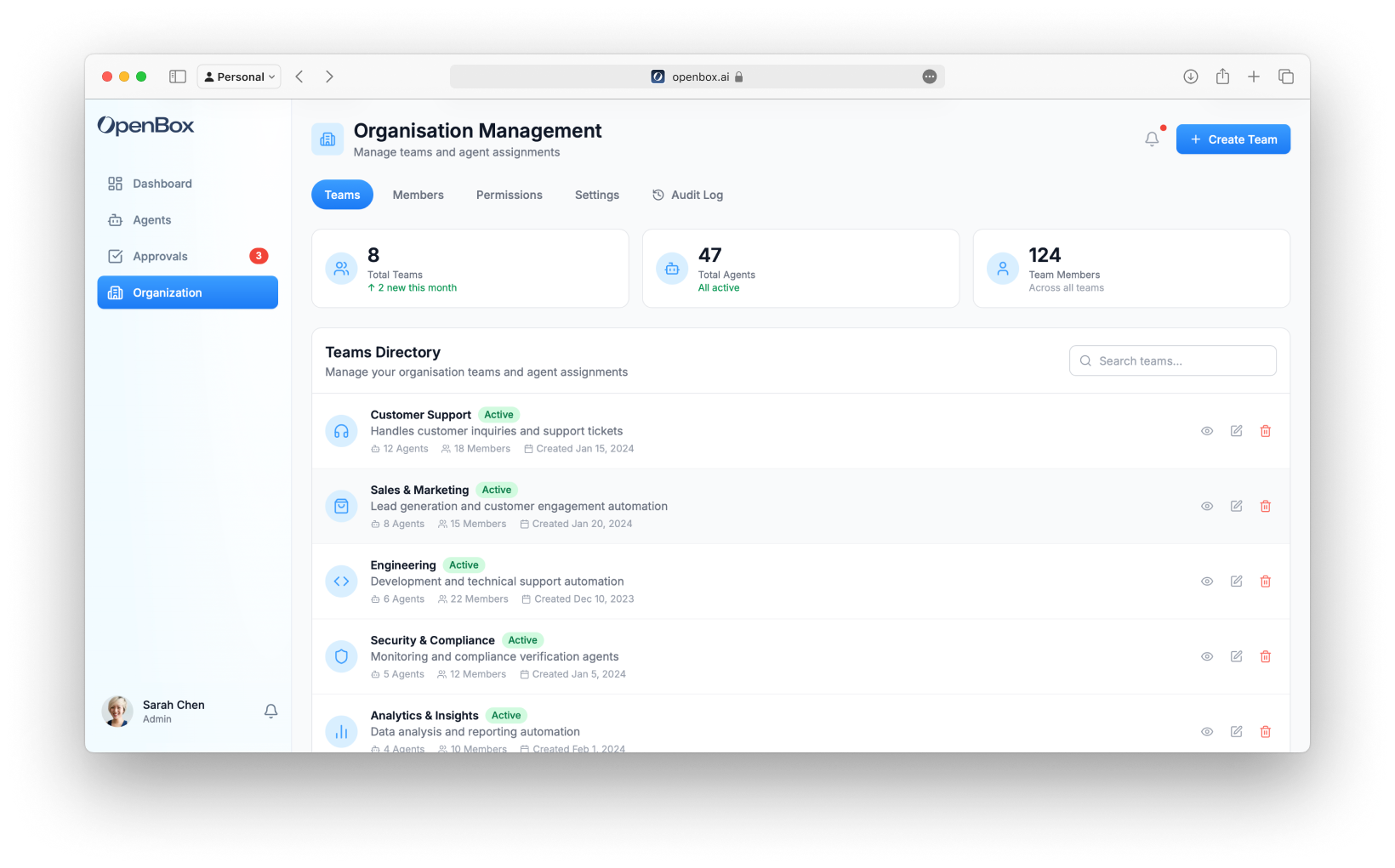
Teams
Organize agents and members into teams for access control. See Teams for the full reference.
Resource Catalog
Declare the business resources (APIs, databases, queues) that the Agent IAM Gate checks operations against, and grant agent roles on each one. See Resource Catalog for the full reference.Members
Adding Members
- Go to Organization → Members
- Click Create User
- Enter user details and select a role
- To assign a team, edit the user after creation and select a team
Team assignment is only available for non-administrator roles (e.g., Developer, Viewer). Organization-level admins have access across all teams.
Permissions
Configure what each role can access and modify within the organization. Go to Organization → Permissions.
| Role | Permissions |
|---|---|
| Admin | Can manage all teams, agents, policies, organization settings, and resource catalog grants across every team |
| Developer | Can create and manage agents within assigned teams, and grant agent roles on resources their team owns. Cannot modify organization settings |
| Viewer | Can view agents, logs, reports, and the resource catalog. Cannot make any modifications |
Platform Operations
Manage the developer-facing webhooks subscription API, platform management API keys, and feature flags. See Platform Operations for the full reference, including how these differ from an agent's own API key and from the notification integrations below.Identity Bridge
Optionally connect an identity provider so trust incidents are emitted as CAEP signals over the Shared Signals Framework. Off by default for every organization; new connections start in Monitor Mode and send nothing live until you opt in. See Identity Bridge for the full reference.Settings
General
- Organization name and logo
- Default timezone
- Notification preferences
Integrations
Organization-level notification integrations are in development. This section will be updated with setup steps once available.
| Integration | Purpose |
|---|---|
| Slack | Approval notifications |
| PagerDuty | Critical alerts |
| Datadog | Metrics export |
| Splunk | Log forwarding |
| Webhooks | Custom notification destinations |
This "Webhooks" integration sends notifications to a URL you provide; it isn't the same as the developer-facing event-subscription API. See Platform Operations → Webhooks for that.
Billing
Billing & entitlements is staged for release. This section will be updated with real plan and invoice data once it ships.
Planned:
- Current plan details
- Usage metrics
- Invoice history
- Payment methods
- Upgrade/downgrade
Audit Log
View all organization activity:
| Event Type | Examples |
|---|---|
| Authentication | Login, logout, failed attempts |
| Members | Invites, role changes, removals |
| Agents | Created, updated, deleted |
| Policies | Created, updated, deleted |
| Approvals | Approved, rejected, expired |
| Settings | Configuration changes |
Filtering
Filter audit log by:
- Date range
- Event type
- User
- Agent
- Team
See Audit Log for details.
Next Steps
- View Audit Log - See detailed activity history and export for compliance
- Compliance - Use audit trails and attestation evidence for auditors